
Click Report in the top to access a report with sales overview.
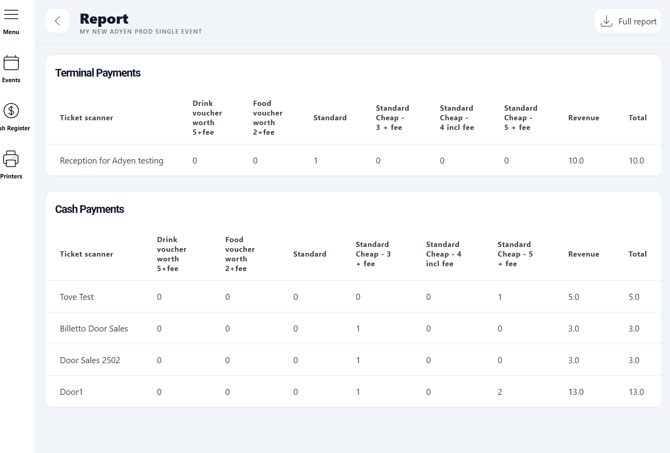
The report is divided into card payments and cash payments.
For card payments (upper section), the row in the table reflects the name of the place, which was inputted at the login screen (see previous section), or the terminal name. The columns show the number of sold tickets and addons - one column for each ticket/product type. The column revenue shows the total revenue for that row, in the local currency the Billetto account uses.
For cash payments (bottom section), the row in the table reflects the name of the place or terminal, which was inputted at the login screen (see previous section). The columns show the number of sold tickets and addons - again, one column for each ticket/product type. The column revenue shows the total revenue for that row, in the local currency the Billetto account uses.
Export all details to an Excel file (which is sent to the e-mail address associated with the Billetto account) by clicking “Full report” in top right corner.

This will include all orders (both card, cash and online) for all time of the event. Each row reflects one sold item, so if one order consists of e.g. 2 tickets and 1 addon, there will be 3 rows with the same order id. Price is the total price paid for the ticket/product in that row paid, incl. VAT. “Fee included” is TRUE or SAND if ticket fee is included in the “Price”. If fee is not included, but separate, “Fee included” is FALSE or FALSK.
That means, that in order to get your share of the revenue as an organizer: Sum the column “Price”, but for rows where “Fee included” is TRUE, subtract the fee shown in “Ticket Fee” column.
Sales channel tells you exactly where the revenue comes from:
“Online” = ticket sold online on Billetto or your own website via widget - not as part of door sales.
“Terminal” = door sales with card payment
“Pos” = door sales with cash payment
For all “Terminal” orders (i.e. door sales with card payment), next column (“Purchase terminal”) will show you which Adyen account the terminal is connected to. For all “Pos” orders (door sales with cash payment), next column (“Purchase terminal”) shows the name inputted at login screen (see previous section).
Remaining columns shows when the ticket/product was bought (timestamp of order) and details on whether it has been scanned yet, and when.