
It is easy to create a membership on Billetto. Follow the step-by-step guide below.
Important: Regardless of which membership type you choose, membership revenue is paid out to you monthly. This applies to monthly subscriptions, annual subscriptions, and one-time memberships. Read more here.
Note: Membership payments can only be made by credit/debit card, Google Pay, or Apple Pay.
1. Create the Membership
- Log in to Billetto.
- Click My Billetto.
- Select Memberships and click Create Membership.
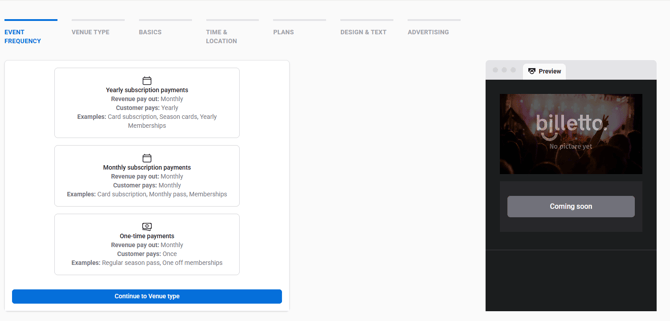
2. Choose a Membership Type
Select the type of membership you would like to offer your members.
Monthly Subscription payments
With monthly billing, the membership fee is automatically charged to the member’s payment card once per month until the membership is cancelled.
Yearly Subscription payments
With annual billing, the membership fee is automatically charged to the member’s payment card once per year until the membership is cancelled.
Annual subscriptions are set up in the same way as monthly subscriptions.
If you would like to enable annual automatic payments, please contact our support team at support@billetto.com.
One-Time payments
With a one-time membership, the member pays once at the time of purchase. When the membership expires, a new membership must be purchased.
You can choose between two options:
- Set a start and end date for the membership.
- Let the membership run until you manually end it.
If you choose to let the membership run without an end date, leave the following checkbox selected:
"This membership runs automatically until it is closed and therefore does not require a time or date."
When you later want to end the membership, open the membership, select More in the top-left corner, and then click Complete, which will close the membership.
Alternatively, you can uncheck the box and specify the membership’s start and end dates.
Need annual automatic payments? Please contact our support team at support@billetto.com.
3. Choose a Location Type
Select the location type that best fits the membership:
- Standard
- Seated
- Online
4. Enter Membership Information
Under Basics enter the membership name and select the relevant categories.
5. Set the Time and Location
Enter the address and dates for the membership.
If the membership should not have a fixed end date, leave the following checkbox selected:
"This membership runs automatically until it is closed and therefore does not require a time or date."
When you later want to end the membership, go to the membership admin page and select:
More → Complete
Alternatively, you can uncheck the box and specify a start and end date for the membership.
6. Create Membership Types
Under Plans, create the membership ticket types and pricing options you would like to offer.
7. Customize the Design and Description
Under Design & Text, you can:
- Add a membership description
- Upload images
- Add videos
- Customize the membership presentation
8. Save as a Draft
We recommend saving the membership as a draft first.
Once the membership has been saved, you will be redirected to the membership admin page.
9. Set Up a Commitment Period or Notice Period
Go to:
Customisation & Design → Membership plans
Here, you can set up either a Minimum contract period or a Notice period.
Minimum contract period
Specify the minimum number of months a member must remain subscribed before the membership can be cancelled.
If a member cancels before the commitment period has ended, they will still be required to pay for the remaining duration of the commitment period.
Notice Period
Specify the number of months between cancellation and the membership ending.
For example, if the notice period is one month, the member will pay for the current month plus the following month.
Note: A membership cannot be subject to both a commitment period and a notice period at the same time. Which rule applies depends on where the member is in their membership lifecycle.
10. Review the Membership
Before publishing the membership, we recommend reviewing:
- Design & Text
- Ticket design
- Order confirmation
- Access codes and other settings
You can preview the membership as members will see it by clicking Visit.
11. Publish the Membership
When everything is ready, click Publish at the top of the page.
Your membership is now active and ready to be shared with your members.